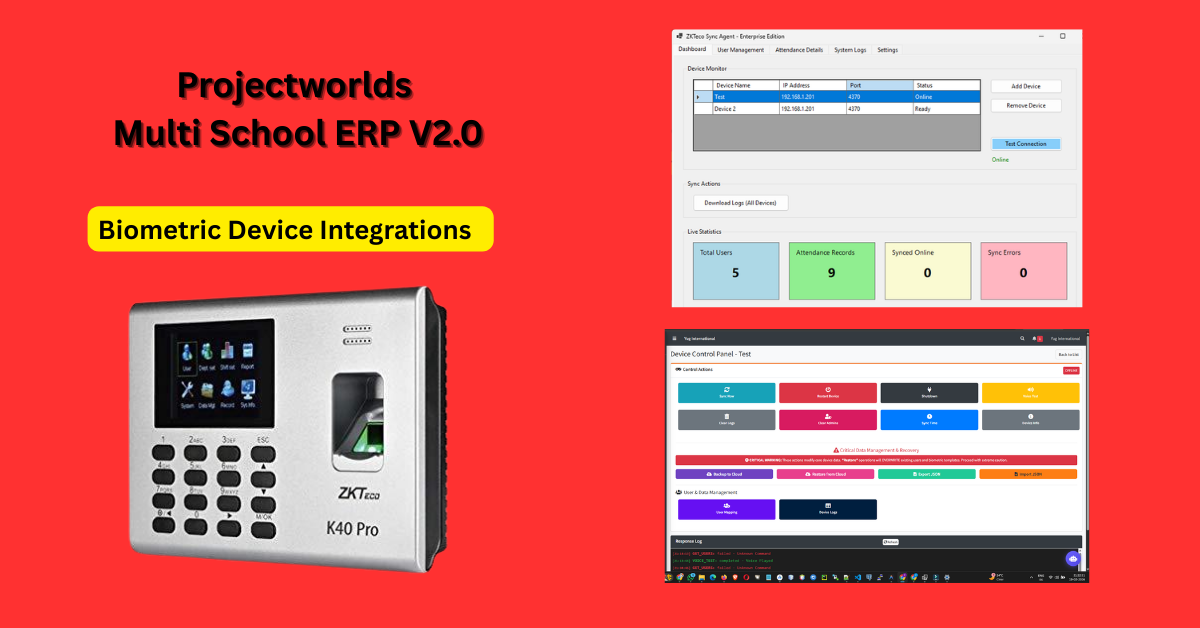
This document is divided into three sections:
- Section A: Features & Benefits: The "Why" - What makes this agent different.
- Section B: User Manual: Daily operations for School Staff.
- Section C: Technical Guide: Deployment for IT Technicians.
🌟 Section A: The Edge (Features & Advancements)
What makes this agent the most reliable synchronization engine for schools.
1. Multi-Network Isolation (Reachability Pulse)
The Problem: Standard agents hang for 20-30 seconds if a device is offline or on a different branch network. Our Advancement: We implemented a 500ms Reachability Pulse. The agent "pings" the device via TCP before any action. If it's physically unreachable (different city/branch), the agent skips it in milliseconds.
- Benefit: Zero-lag performance. One branch going offline never slows down the rest of the school.
2. Manual Mapping "Shield"
The Problem: Automatic syncs often overwrite manual corrections made by staff. Our Advancement: An Intelligent Preservation Engine. If a human administrator maps a student on the website, the background agent "shields" that record. It will sync names and roles but will never overwrite your manual mapping choice.
- Benefit: Human-in-the-loop control with machine-level automation.
3. Autonomic Data Integrity (Zero-Ghosting)
The Problem: Biometric hardware often pads IDs with "hidden spaces" (e.g., " 3 "), creating duplicate "ghost" users. Our Advancement: Recursive ID Normalization. The agent, API, and Database work in a "Triple-Trim" sync. It automatically merges " 3 " and "3" into a single source of truth.
- Benefit: 100% accurate attendance data. No duplicate student records.
4. Real-Time Cloud Command Center
The Problem: Most agents are "one-way" (Upload only). Our Advancement: A 5-Second Heartbeat Command Loop. You can Reboot, Clear Logs, or Sync Users remotely from your phone/browser. The agent "Fetches" these instructions almost instantly.
- Benefit: Total remote management without needing to visit the physical device.
📘 Section B: User Manual
For School Administrators and Office Staff.
1. Daily Operations
- Fully Autonomous: No "Sync" buttons to press. Attendance flows from the machine to the website every 15 minutes automatically.
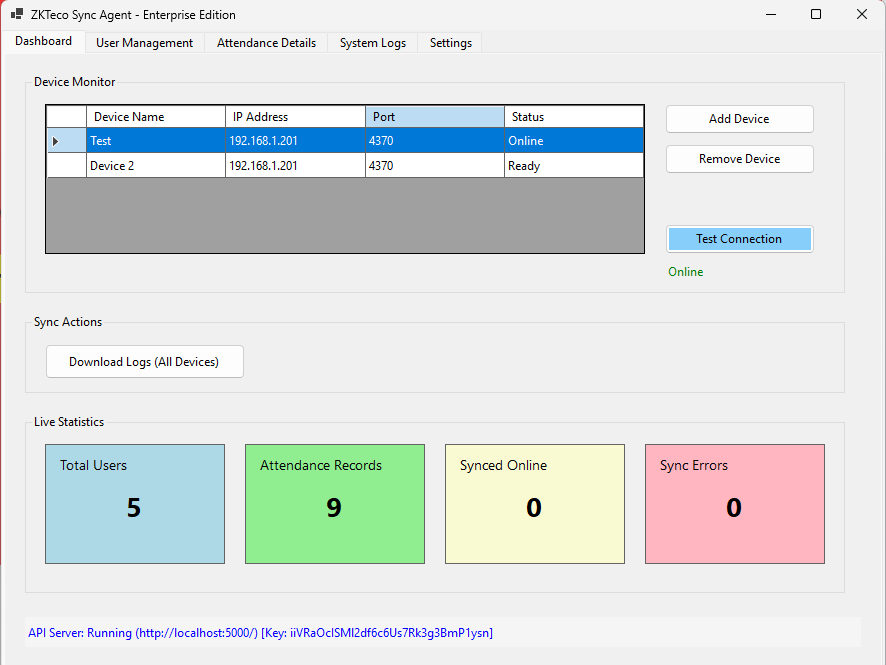
- Visual Status: A green light in the Response Log confirms the "Heartbeat" is active.
2. Setting Up a New Device
- Click Configuration.
- Enter your Backend URL and API Key.
- Save. The agent will now pull all school devices automatically.
3. Mapping Students (The "Abid" Process)
- Go to School Website -> Biometric Devices -> User Mapping.
- Find the Biometric ID (e.g. 3).
- Click Map and select the Student name.
- Result: The fingerprint is now permanently linked to that student's marksheet and attendance report.
🛠️ Section C: Technical Guide
For Developers and IT Support.
🚀 1. Prerequisites
- Runtime: .NET 8.0 SDK/Runtime.
- Native Logic: ZKTeco SDK (x86) - Portability optimized.
- Libraries: Visual C++ 2012 Redistributable (x86) is mandatory for driver-level communication.
🛠️ 2. Deployment (PowerShell)
powershell
# Open firewall for device communication (Port 4370)
New-NetFirewallRule -DisplayName "ZK Device" -Direction Inbound -Protocol UDP -LocalPort 4370 -Action Allow
New-NetFirewallRule -DisplayName "ZK Device" -Direction Inbound -Protocol TCP -LocalPort 4370 -Action Allow
⚙️ 3. Advanced Config (
appsettings.json)
json
{
"BackendUrl": "https://school.example.com",
"ApiKey": "iiVRaOcISMl2df6c6Us7Rk3g3BmP1ysn",
"SyncIntervalMinutes": 15,
"AutoStartEnabled": true,
"Devices": [
{ "IpAddress": "192.168.1.201", "Port": 4370, "id": 11, "Enabled": true }
]
}
📸 Premium Visuals