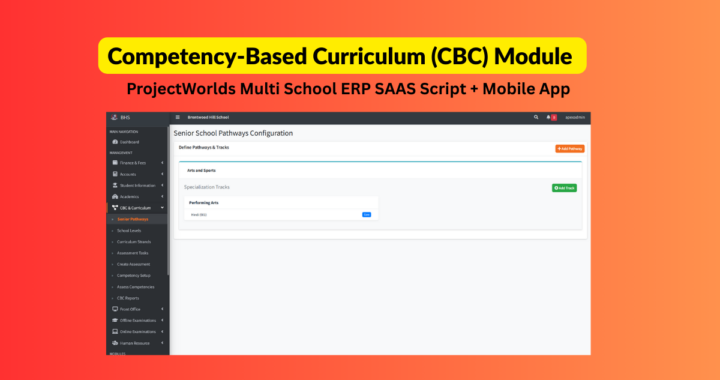
Live Demo Click Here
Buy Now ₹11999/-
1. Introduction
This module allows schools to manage the Kenyan Competency-Based Curriculum (CBC) seamlessly alongside standard grading systems. It supports Early Years (PP1-PP2), Primary, Junior School, and Senior School Pathways (STEM/Arts/Social Sciences).
2. Configuration (Admin)
Before teachers can grade, the system must be set up.
Step A: Define School Levels
Navigation: Academics > CBC Configuration > School Levels
-
Click Add New Level.
-
Create levels corresponding to your school structure:
-
Name: PP1, Category: Early Years
-
Name: Grade 1, Category: Middle School (Lower Primary)
-
Name: Grade 10, Category: Senior School
-
-
Tip: The "Category" is critical. It determines if a student sees "Pathways" (Senior) or standard subjects.
Step B: Link Classes to Levels
Navigation: Academics > Classes
-
Edit an existing class (e.g., "Class 1").
-
In the Curriculum Level dropdown, select the corresponding level (e.g., "Grade 1").
-
Save.
-
Result: The system now knows "Class 1" follows the CBC curriculum for Grade 1.
-
Step C: Define Pathways (Senior School Only)
Navigation: Academics > CBC Configuration > Pathways
-
Create Pathway: Add "STEM", "Arts & Sports", etc.
-
Add Tracks: Under STEM, add tracks like "Pure Sciences" or "Applied Sciences".
-
Assign Subjects: Check which subjects are Core (Compulsory) vs Elective for that track.
3. Curriculum Management (Admin/HoD)
Step A: Create Learning Areas (Subjects)
Navigation: Academics > Subjects (Standard Module)
-
Ensure subjects like "Environmental Activities" or "Physics" exist.
Step B: Define Strands & Outcomes
Navigation: Academics > CBC Configuration > Strands
-
Select a Subject (e.g., Environmental Activities).
-
Click Add Strand (Topic), e.g., "Environment and Resources".
-
Inside the Strand, add Learning Outcomes (Sub-strands).
-
Name: "Weather".
-
Outcome: "Learner is able to observe weather changes."
-
Rubrics: Enter text for Level 1 (Below) to Level 4 (Exceeding) to guide teachers.
-
4. Teacher Workflow: Assessment & Grading
Step A: Create an Assessment
Navigation: Academics > CBC Assessment > Create Task
-
Name: "Mid-Term Project".
-
Type: Select "Project", "Oral", or "Practical".
-
Context: Select Class, Section, and Subject.
-
Click Create.
Step B: Enter Marks (The Grading Grid)
You are redirected to the grading screen.
-
Select Outcome: Use the dropdown to pick what you are assessing today (e.g., "Weather").
-
View Rubric: A guide appears showing what "Level 3" means for this specific task.
-
Grade Students:
-
Select 1, 2, 3, or 4 for each student.
-
Add a Comment (e.g., "Excellent chart").
-
Upload Evidence: Click "Upload" to attach a photo of the student's work (Learner Portfolio).
-
-
Click Save Marks.
5. Senior School: Pathway Selection
For Grades 10-12 Only.
How to Assign a Track
-
Go to a Student Profile (Search for a Grade 10 student).
-
Click the yellow button: Assign Subject Pathway.
-
Select Track: e.g., "STEM - Pure Sciences".
-
Select Electives: Check any optional subjects the student is taking.
-
Save.
-
Result: When a teacher opens the "Physics" grading sheet, this student will appear. If they drop Physics later, update this form, and they will disappear from the grading sheet.
-
6. Reports & Analysis
Generating Report Cards
Navigation: Reports > CBC Reports
-
Select the Student.
-
Click Generate PDF.
-
The report shows:
-
Color-coded performance levels (Green/Blue/Yellow/Red).
-
Specific strands assessed.
-
Teacher comments per strand.
-
Core Competency (Values) ratings.
-
Core Competencies (Values) Assessment
Navigation: Academics > Core Competencies > Assess Class
-
Select a Class/Section.
-
Rate every student on the 7 Core Values (e.g., Communication, Citizenship) for the term.
-
These ratings appear at the bottom of the PDF Report Card.
7. Health & Wellness (Nurse/Admin)
Navigation: Health & Wellness
-
Records: Update blood group, allergies, and emergency contacts for a student.
-
Incidents: Log daily occurrences (e.g., "John fell during break"). This creates a permanent medical log for the school.
Competency-Based Curriculum (CBC) System
A Unified Platform for Kenyan Education (2-6-3-3-3)
1. Executive Summary
MySchoolHub has been upgraded with a specialized, dedicated engine to handle the Competency-Based Curriculum (CBC) while retaining the power of the existing examination system.
Unlike traditional systems that force CBC into a "Marks & Percentage" structure, MySchoolHub offers a true Hybrid Architecture:
-
Junior School: Uses Strands, Rubrics, and 1-4 Performance Levels.
-
Senior School: Supports complex Subject Pathways (STEM/Arts) alongside traditional grading.
-
Administration: Unified data for Health, Transport, and Academics.
2. Key Features Breakdown
🏛 A. Flexible Academic Structure
-
School Level Configuration: Define your specific structure (e.g., Pre-Primary only, or K-12).
-
Hybrid Classes: Run "Grade 4 CBC" and "Form 4 8-4-4" in the same system simultaneously.
-
Curriculum Mapping: Link Classes to specific Curriculum Levels (Early Years, Middle School, Senior).
📊 B. True CBC Assessment Engine
-
Hierarchy Support: Subject → Strand (Topic) → Sub-Strand (Learning Outcome).
-
Rubric-Based Grading: Teachers grade using Performance Levels (1-4):
-
4 = Exceeding Expectations
-
3 = Meeting Expectations
-
2 = Approaching Expectations
-
1 = Below Expectations
-
-
Dynamic Descriptors: The system displays the specific rubric text (e.g., "Can identify 5 types of soil") directly on the grading screen, guiding teachers.
-
Assessment Types: Support for Projects, Oral tasks, Observation, and Written tests.
📸 C. Learner Portfolio (Evidence-Based Learning)
-
Digital Evidence: Teachers can snap a photo of a student's project or upload a PDF document directly while grading.
-
Portfolio Storage: Evidence is permanently linked to the specific Learning Outcome and stored in the cloud.
-
Parent Access: Parents can view these artifacts, proving why a specific rating was given.
🚀 D. Senior School Pathways (Grades 10-12)
-
Track Selection Wizard: Specialized module for students to choose their path:
-
STEM: Pure Sciences, Applied Sciences, Technical.
-
Social Sciences: Humanities, Languages.
-
Arts & Sports: Visual Arts, Performing Arts.
-
-
Subject Filtering: The grading sheets automatically filter students. A Physics teacher only sees students who selected the Science Track.
-
Core vs. Elective: Enforces mandatory subjects per track while allowing optional electives.
❤️ E. Core Competencies & Values
-
Beyond Academics: dedicated module to assess the 7 Core Competencies:
-
Communication & Collaboration
-
Critical Thinking & Problem Solving
-
Imagination & Creativity
-
Citizenship
-
Digital Literacy
-
Learning to Learn
-
Self-Efficacy
-
-
Termly Assessment: Teachers rate these values once per term to appear on the report card.
🏥 F. Health & Wellness Module
-
Medical Profile: Digital record of Blood Group, Allergies, Chronic Conditions, and Emergency Contacts.
-
Incident Log: Digital "Occurrence Book" for the School Nurse to log injuries, sickness, and actions taken (First Aid, Hospital Referral).
📄 G. Reporting & Analytics
-
CBC Report Card: A beautifully designed, color-coded PDF report.
-
Visual "Performance Bars" (Green/Blue/Yellow/Red).
-
Detailed comments per Strand.
-
Summary of Core Values.
-
-
Parent Portal: Real-time access for parents to download reports and view assessment feedback.
3. Technical Advantages
-
Data Isolation: Built on a secure SaaS architecture ensuring School A cannot see School B's data.
-
Mobile Optimised: The Grading Grid works on tablets, allowing teachers to grade while walking around the classroom.
-
Scalable: Ready for the full rollout of Senior School in 2026/2027 without further code changes.